
Advanced Claude: what changed when chat became a runtime

Claude isn’t a chat app anymore. It’s a runtime. The interface is still text, but the architecture underneath is execution , load context, pick tools, call APIs, write files, schedule work. Most people are still typing at it like ChatGPT in 2023 and wondering why their workflow hasn’t changed.
The shift happened quietly, across four primitives. Each one shipped without much fanfare. Together they’re what “advanced” means in 2026: not a longer prompt, but a better-wired one.
This piece is the primer. The four things to understand before you can use Claude well.
The mental model
The outdated framing: Claude is good at writing, explaining, coding.
The 2026 framing: Claude is a runtime that loads skills, scopes memory in projects, calls external systems through MCP, and executes multi step work in Cowork.
Same model file, completely different surface. The question used to be “what can Claude do?” The question now is “what can I wire into Claude?”
That reframe is the whole article. Everything below is the four primitives that make the reframe real.
1/ Skills (the tool layer)
A skill is a folder with a SKILL.md file. YAML frontmatter at the top with name and description. Markdown body underneath with the instructions Claude follows. That’s the entire format.
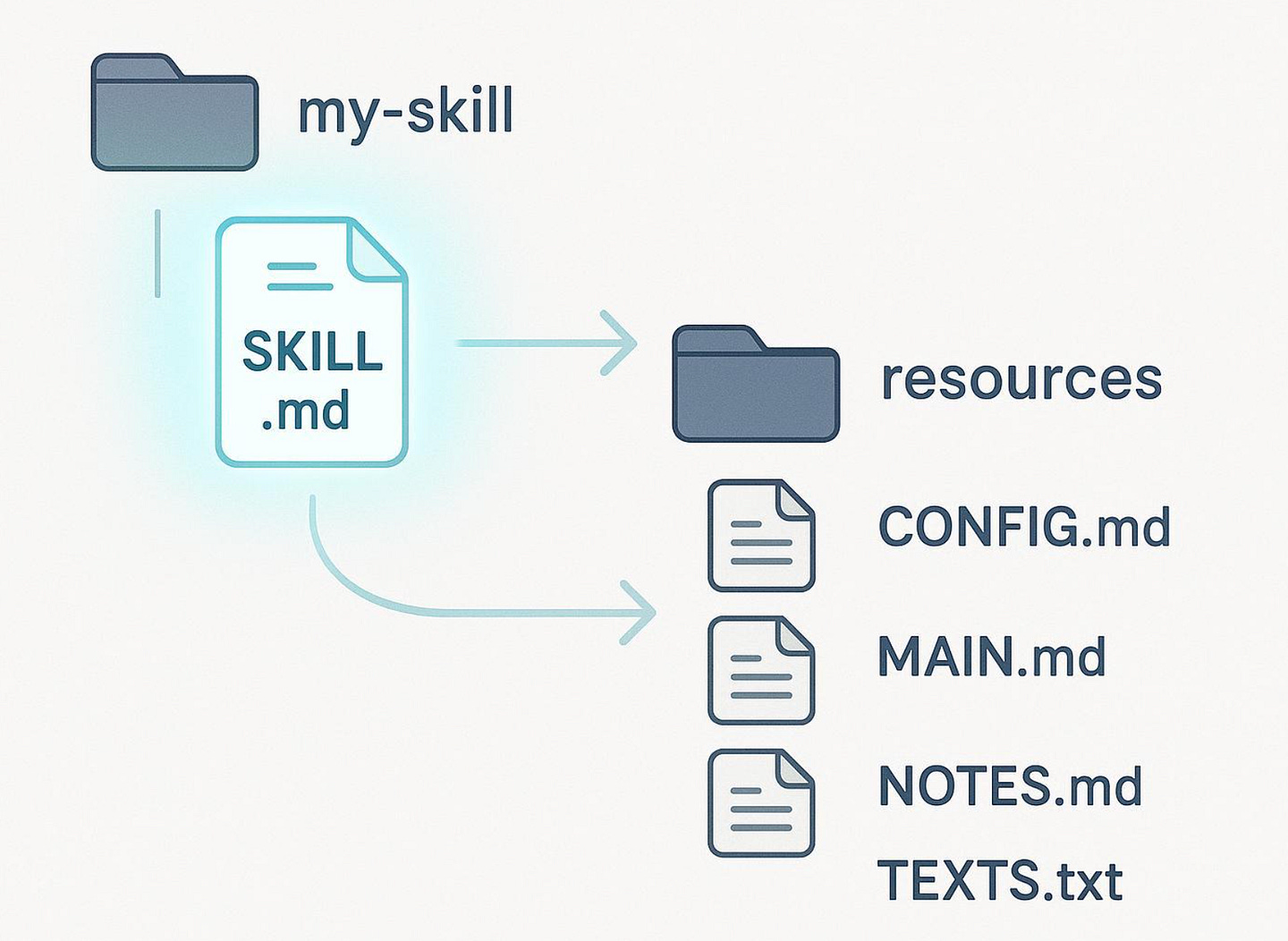
The mechanism is the part most people miss. The description is what Claude sees in its skill list before responding. The body only loads when the skill triggers. So you can have 50 skills sitting available and pay context cost on only the one that fires.
This changes what you’d put in a skill. A skill isn’t a system prompt by another name. It’s a tool you teach Claude once and reach for whenever the task fits.
Things skills are good at:
Domain procedures: how your team does code review, how your brand voice works, what your component library calls things
Multi-step workflows: write article → format for Medium → cross post to Dev.to → generate carousel
Technical conventions: your API’s auth quirks, your codebase’s folder structure, your testing harness
Two patterns I’ve seen work in production.
A context skill holds your domain knowledge once. Other skills reference it. Don’t repeat your brand voice in every generator. Keep it in a *-context skill and have the generators read it.
A generator skill does one job. It writes a thing, or transforms a thing, or validates a thing. Single purpose, composable, chains cleanly.
The mistake is making one giant skill that does everything. Anthropic’s own opensource skills repo has separate pdf, docx, xlsx, and pptx skills, not one mega “documents” skill, for a reason. Generators that do too much fail in too many ways and get triggered by too many prompts.
The other thing nobody tells you: the description is the trigger. I spent two weeks getting one of my skills to fire when I asked for the right thing. The body was fine. The description was vague. Claude didn’t trigger the skills by default, and Anthropic’s own guidance is to be slightly pushy in descriptions. Specific verbs, specific phrases, specific contexts.
Custom skills are available on Pro, Max, Team, and Enterprise. You can create them directly in Claude.ai (Settings → Capabilities), via the API, or as folders in Claude Code.
2/ Projects (scoped memory)
A Project is a workspace with its own files, instructions, and memory. Memory accumulated in one project doesn’t bleed into another. Same Claude account, effectively different “instances” of context.
Why it matters: Chat memory was useful but contaminating. A single global memory pool meant Claude pulled context from a personal conversation into a work answer, or surfaced last week’s product strategy when you asked about something unrelated. Project scoped memory fixes that without forcing you to start cold every session.
What to use it for:
One project per product or work stream, to keep the contexts clean
Long unning threads where context compounds (research projects, ongoing client engagements, multi week investigations)
Anywhere you want Claude to remember but not leak
The pattern: every project gets its own files (a PRD, a brand voice doc, a technical spec) and its own memory. The skills you’ve installed are still available across all projects, but the context is scoped.
A consequence worth noticing. If you’re not using Projects, your default chat is becoming a leaky bucket. Memory accumulates. Some of it conflicts. After three months it’s a soup. Projects are how you stop that.
3/ Connectors (the integration layer over MCP)
Connectors are Model Context Protocol based integrations that let Claude read from and write to external services. Google Drive, Gmail, Notion, GitHub, Slack, Linear, Asana, Jira, Stripe, Figma, Canva, HubSpot, Apple Health. 50+ in the directory as of early 2026, with new ones added weekly.
Why they matter: pasting screenshots and copy pasting JSON is the manual work AI was supposed to remove. Connectors remove it. Instead of “here’s the email I got,” it’s “the email from Sarah yesterday.” Claude pulls it. Instead of pasting an issue body, it’s “the bug filed in expo_boilerplate.” Claude pulls it.
When to use them:
Tools already in your daily workflow. Connectors only earn their place if they’re already part of how you work.
Workflows that span tools (calendar + email + Slack = daily briefing)
Anywhere you find yourself screenshot pasting more than twice in one session
The custom MCP escape hatch (Pro plan and above): if your tool isn’t in the directory, you can add any MCP server URL via Settings → Connectors → Add custom connector. Notion’s hosted MCP at https://mcp.notion.com/mcp is the canonical example. Anyone publishing an MCP server can be wired into Claude in 30 seconds.
The trap is over connecting. Each connector adds surface area for Claude to get confused. Multiple integrations claiming to handle “messages” or “tasks” leads to wrong tool picked failures. The honest take: pick three to five that match your real flow. Connect more only when you hit a specific gap.
4/ Cowork (the agentic execution layer)
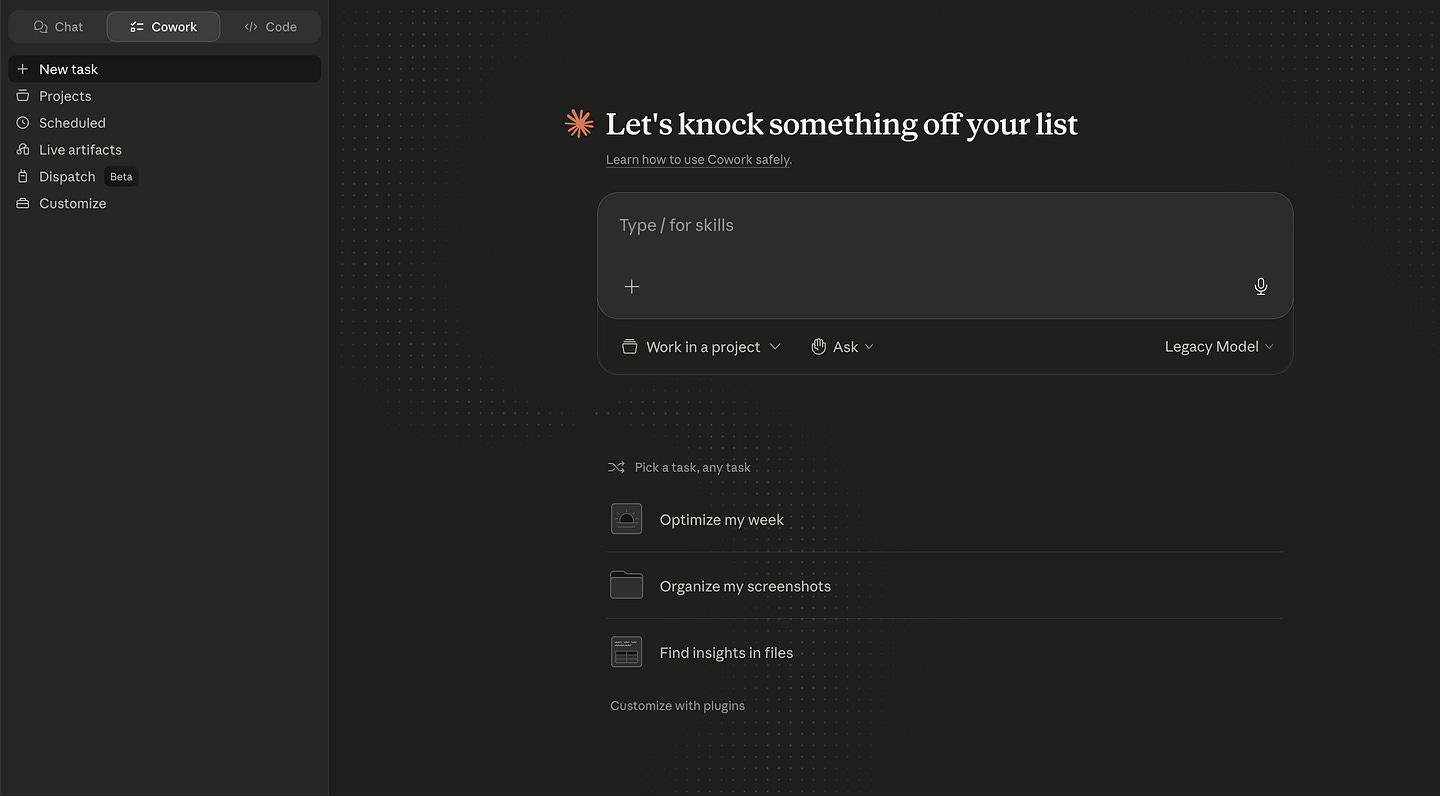
Cowork is the same agentic architecture as Claude Code, but for non-coding tasks, in the desktop app. (If you haven’t installed Claude Code yet, the Claude Code for beginners guide on the Code Meet AI newsletter walks through the install and your first project.) It reads and writes local files, schedules recurring tasks, and uses connectors first, the browser second, and computer use (driving your screen) only as a last resort. Available on Pro, Max, Team, and Enterprise. Desktop only.
This is where Claude shifts from assistant to colleague. You give it a goal, walk away, come back to a result. The desktop has to be awake while it runs. That’s the catch.
What Cowork is good at:
Repetitive multi step work like file organization, daily briefings, and weekly reviews
Tasks that span tools and need orchestration (calendar + email + Slack synthesis)
Work that’s too boring to do reliably but too important to skip
What it’s not for:
Time sensitive tasks. Your desktop has to be open and awake.
Sensitive data (financial, health, anything regulated). Prompt injection risk is real, and Cowork activity isn’t covered by ZDR.
Work where you want to think alongside Claude. That’s chat. Cowork is delegation.
The real test: if you’d skip the task because it’s boring, Cowork is the right tool. If you’d want to watch Claude do it step by step, chat is.
The multiplier: Dispatch + Computer Use
Two extensions on Cowork worth knowing about, because together they’re what make the rest worth setting up.
Computer Use lets Claude drive your screen. Clicking, typing, navigating apps that don’t have connectors. Slower than a connector. More fragile. But it works for the long tail of tools that haven’t published an MCP server. Research preview on Pro and Max.
Dispatch lets you assign tasks from your mobile app to your desktop. You’re on the train; you tell Claude on your phone to summarize three articles you drafted this week. By the time you’re at your desk, the answer is in chat.
Both are research previews as of May 2026. Both work. Use sparingly until they harden, but understand they exist. They’re the difference between Claude as a desktop tool and Claude as something you can handwork from anywhere.
What this means for builders
For mobile builders specifically, the implications are sharper than they look from the outside. The web AI dev community has been on this trajectory longer (Cursor, Claude Code in CLI, MCP servers for every database, custom skills for every framework). Mobile dev has stayed a step behind partly because the canonical workflows assume a backend or web context.
Skills, Projects, and Connectors don’t care what stack you ship to. The runtime is platform agnostic. The gain compounds the moment you treat Claude as something to wire, not something to type at.
The honest version: most “I’m not getting much out of AI” complaints I hear from devs in 2026 trace to one of three things. They’re still on the chat surface. They haven’t built a single skill. Or they’re treating connectors like a novelty. None of those are model problems. There are setup problems.
Where to start
Pick one primitive, build something, ship it. Add the next one when the simpler setup hits a wall.
For most people, the order is:
One Project per major work stream. Stop polluting the default chat.
One custom skill for your domain context. Brand voice, codebase conventions, whatever your work depends on.
Three connectors. The ones already in your daily flow. Not ten.
One Cowork recurring task. A morning briefing is a good first one.
Stop there for a month. Notice what’s still manual. Build the next thing for that.
The advanced version of Claude isn’t a longer prompt. It’s the four primitives, wired into how you really work. You’re writing code now. It just happens to look like English.
If you’re shipping mobile AI
The four primitives apply to every stack, but the wiring for React Native and Expo is its own problem. Web AI dev has a year’s head start on patterns; mobile is still figuring out what a Claude Code memory bank looks like for a Metro bundler, what skills make sense for an Expo build pipeline, and which connectors actually plug into a mobile workflow.
That’s the gap AI Mobile Launcher fills. It ships the U-AMOS memory system, RN specific Claude Code rules, and the Skills folder structure preconfigured for Expo and the mobile stack — so you’re not figuring out the wiring on a Tuesday night with a build failure on the line.
The Lite version is free on GitHub. The full system with the rule packs, generators, and U-AMOS 2.0 memory bank is in the Starter tier.
Want the U-AMOS memory bank as a standalone download? Subscribe to the Code Meet AI newsletter, and you’ll get the lite template plus the next piece in this series.
Coming next: the working setup. Twelve skills, four connectors, one daily Cowork task. What each piece does, why it earned its place, and how the chain composes itself.